⚽ Prop tracking: sports balls and tags
mimem can track the objects your actors handle, as well as the actors themselves. Today it tracks two kinds of prop:
| Sports balls | Tags | |
|---|---|---|
| What it is | Any round sports ball, found automatically | A printed AprilTag or ArUco square that you stick on an object |
| What you get | Position on every frame, and the ball’s diameter | Position and orientation on every frame |
| Telling objects apart | By their paths through the scene, and their colours | By the ID printed on each tag, so they never swap |
| Good for | Kicks, throws, juggling | Large, slow-moving objects you can stick a tag on |
Props are reconstructed after your actors, against the same cameras, so a prop that goes wrong can’t affect the actors’ animation or fail the job. The one deliberate exception is static tags, which help mimem place the cameras.
Prop tracking is in beta.
Sports balls
mimem detects round sports balls, such as footballs and juggling balls, in every camera. It works out which detections belong to the same ball and rebuilds each ball’s path through the scene. Several balls can be tracked in the same take.
For each ball you get its position on every frame and its diameter, which mimem measures from the footage, so you don’t need to tell it which ball you’re using. Spin isn’t tracked: a ball is a point with a size.
Fast kicks and throws are fine, even when the ball travels further than its own width from one frame to the next. So are stretches where only one camera sees the ball: its distance then comes from its apparent size and, while it’s in the air, from gravity.
When no camera can see the ball
If the ball is out of every camera’s view for more than about a third of a second, mimem bridges the gap with physics so that the path stays continuous. It doesn’t pass that guess off as a measurement, though: the stretch is flagged as unobserved, and the viewer fades the ball out until a camera picks it up again.
Getting a clean ball track
- Keep the ball in view of two cameras or more as much as you can. One-camera stretches work, but they’re less certain.
- Clear spare balls out of the shot. A ball lying still where two cameras can see it gets tracked like any other. A still ball that only one camera sees is ignored, because its distance can’t be known.
- Give several balls different colours if you can. Their paths keep identical balls apart, but colour helps when one leaves every camera’s view and comes back.
- Expect brief appearances to be ignored. A ball has to be seen for a while before mimem counts it, so a stray detection never becomes a phantom ball.
Tags
A tag is a printed black-and-white square from the AprilTag or ArUco families. Fix one to a prop and mimem tracks the prop’s position and orientation on every frame. Apart from sports balls, this is how you track any prop.
Each tag is tracked on its own, with no board or special layout to follow. The ID printed on a tag tells mimem which object it is, so two props can never swap.
Keep every tag readable
The hard part of tag tracking is visibility. mimem can only track a tag while a camera can read it, and there’s no physics to carry it through a gap the way there is for a ball. If no camera reads a tag for more than about a third of a second, that stretch is flagged as unobserved. So at least one camera should be able to read each tag at all times, and preferably two (see One camera or two).
Four things get in the way. The examples below come from real 1080p footage, enlarged so that each square is one camera pixel. Tags with a green outline were read and every other tag was missed. The red dashed outline marks the tag each example is about.

Hidden. A hand, the actor’s body or the prop itself turning away causes more gaps than anything else. Put the tag where hands won’t cover it and where it faces the cameras for most of the move.

Blurred. These tags are big enough, but a fast swing smears their pattern and every one is missed. More light lets the cameras use shorter exposures, which means less blur (see the Lighting Guide).

Too small. At about 22 pixels across, tags are read only some of the time. Here three are read and one is missed, although none of them is moving. See How big is big enough.

Seen at a grazing angle. Nothing covers these tags, but the camera sees them almost side-on, which squashes the outlined one to 15 pixels tall. Only one tag on the folder is read. Tags lying flat on the floor are prone to this.
Check your footage before you process it. Pause your videos during the fastest part of the move and look at each tag. If you can’t make out its pattern because it’s too blurry, too small or half covered, mimem can’t either.
This makes tags best suited to large objects that move slowly, such as a box being carried or a case set down on a table. They have room for a big tag, and that tag stays sharp. How small and how fast you can go depends on your cameras and your lighting, and a short test take will tell you.
How big is big enough
What counts is the number of pixels the tag covers in your video, measured along its shortest side, so a tag seen at an angle counts as smaller. In 1080p footage, aim for 40 pixels or more in every camera that should read the tag. Below about 30 pixels, tags are read only some of the time.
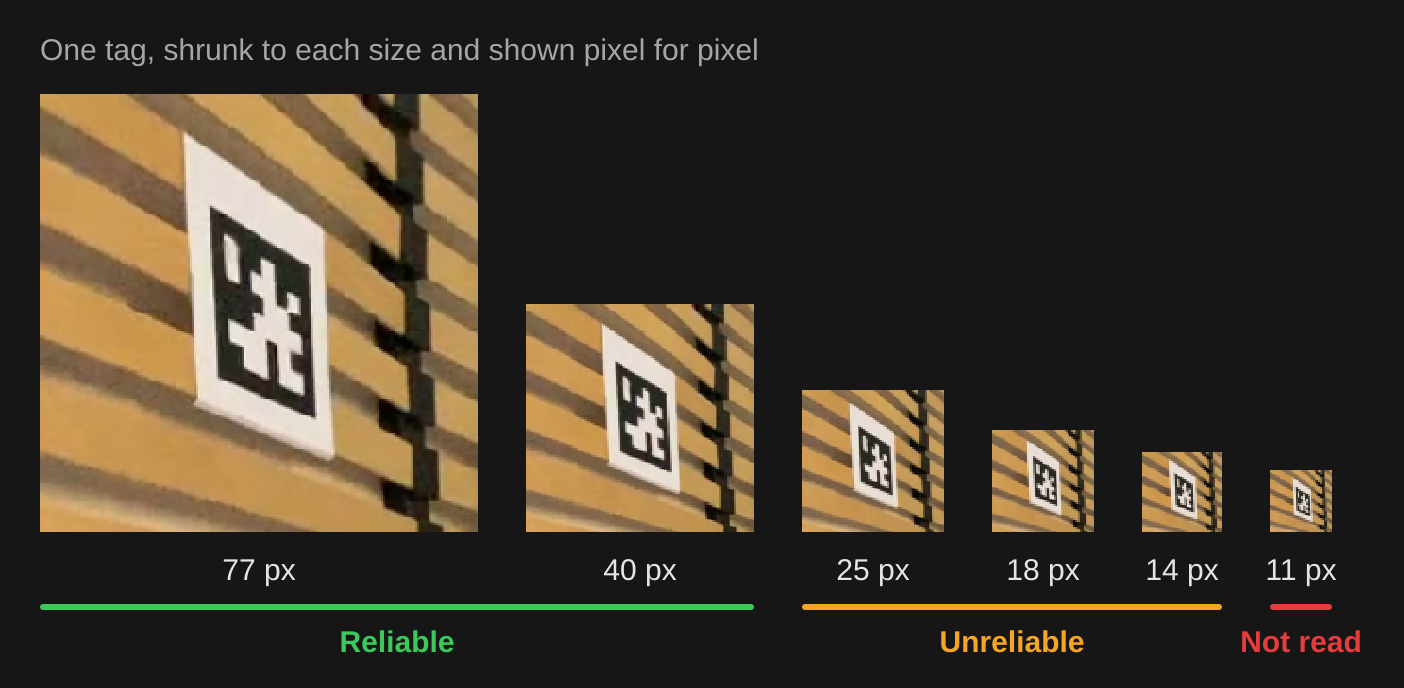
To get your tags bigger in frame, print them bigger or move the cameras closer.
Choose and print your tags
- Start with AprilTag 36h11, the default. Its codes are the hardest to misread, which matters because mimem accepts every tag it decodes without a second check.
- If your tags are small in frame, a family with fewer bits can be read from further away. An AprilTag 16h5 or ArUco 4×4 tag is 6 cells across where 36h11 is 8, so at the same print size each cell is a third bigger. In exchange, these families misread more often, so random texture in the scene is more likely to come out as a tag. Printing bigger or moving cameras closer usually gains more.
- Use one family per take. The Tag family you choose must match the tags you printed. Tags from any other family aren’t detected.
- Give every object its own ID. As far as mimem is concerned, two tags with the same ID are the same object.
- Print flat and matte, and keep the white border around the black square, because the detector needs it. Glossy paper can flare under lights and hide the tag.
- Print them as large as the object allows (see How big is big enough). You don’t need to measure them, because mimem measures each tag itself whenever two cameras see it at the same moment.
The official AprilTag images are on GitHub. They’re tiny, so scale them up without smoothing (nearest-neighbour), or the edges will blur.
One camera or two
When two cameras or more see a tag, its position and orientation are pinned down precisely. From a single camera, a flat square is ambiguous, because two different tilts look almost the same. The position stays reliable, and mimem works out the orientation from the moments just before and after, when two cameras saw the tag.
So make sure every tag is seen by two cameras now and then, especially around stretches where only one camera can see it. A tag that only one camera ever sees keeps a good position, but its orientation is a best guess.
Static tags
mimem automatically recognises a tag that stays put for the whole take (on a wall, the floor or a table) and solves it as a single fixed pose.
Static tags also act as a ruler for the cameras. mimem uses them to refine where each camera is, which sharpens every prop measured against them, and the actors are solved against the refined cameras too.
If precise prop placement matters, fix a few tags where several cameras can see them.
Turn it on
The processing options on the Review Screen have two switches, both off by default:
- Track sports ball
- Track tags (AprilTag / ArUco). Turning this on also shows Tag family, which must match the tags you printed.
Turn on whatever is in your take, or both if it has both. Neither switch changes the token cost.
Forgot to turn it on? Open the animation’s edit page (the ⋯ button beside its title in the viewer), choose Launch new job, and turn tracking on there. If the first pass didn’t look for props, the new job analyses the videos again. It shows its token cost before you confirm.
In the viewer
The 3D viewer’s sidebar gets a few extra controls for takes with tracked objects:
- Display → Scene → Tracked objects shows or hides them.
- Each ball is drawn as a sphere at its measured diameter and each tag as a square at its measured size, each in its own colour. A tag also shows its axes. The blue axis points out of the printed face, so you can check at a glance that the tag is facing the right way.
- An object fades out wherever no camera saw it, and fades back in when one does.
Export
To select the tracked objects, use the Objects button in the sidebar’s Selection row, or click a ball or tag in the scene. The Export section then reads Exports the tracked objects, and Export FBX gives you every tracked object in the take, balls and tags together, without the actors.
- In the file, each ball is a sphere named
ball1,ball2and so on, and each tag is a flat square named after its printed ID, such asmarker7for tag 7. The cameras are included too. - Wherever no camera saw an object, it’s scaled to zero, so it disappears just as it fades out in the viewer.
- Insert T-pose and Root motion are hidden, because there’s no skeleton.
- It counts like any other export: the first export of an animation uses up one from your allowance, and every export after that is free. See Exporting FBX.
- Batch export doesn’t include tracked objects, so export them from the viewer.
Current limitations
- Held balls. When a hand covers most of the ball, its tracked position can wander until the ball is released. Kicks, bounces and free flight are the strong cases.
- Sizes follow the scene’s scale, which mimem works out from the actor’s body. Measured ball diameters and tag sizes can be a few percent off the real object.
Troubleshooting
| Problem | Likely Cause | Fix |
|---|---|---|
| No Tracked objects switch in the viewer | Tracking was off for this job, or it found nothing | Relaunch with the switch on, and check that the ball or tags are clearly visible |
| The tracking switches are greyed out | The v7 (beta) solver is selected | Choose v6: prop tracking isn’t available on v7 yet |
| A ball is missing | It was seen only briefly, or stood still in a single camera’s view | Keep it in view of two cameras |
| An extra ball appears | A spare ball was in view of two cameras | Clear it out of the shot |
| The ball disappears mid-take | No camera saw it for more than about a third of a second | Nothing: this is expected. See When no camera can see the ball |
| No tags are detected | Tag family doesn’t match the printed tags, or the tags are too small, blurred or cropped | Check the family, print bigger tags, and keep the white border |
| A tag drops out during the take | Motion blur, a hand over the tag, or the tag turned away from every camera | Pause the footage on those frames: if you can’t read the tag, neither can mimem. Add light, slow the move down, or move the tag |
| A tag flips over | Only one camera saw it for a long stretch | Place cameras so that two of them see the tag now and then |
To go further
- Exporting FBX: format choice, your export allowance, and re-downloading.
- Camera Placement & Capture Volume: get cameras close, so that tags are bigger in frame, and cover the space so that two cameras see your props.
- Lighting Guide: more light means shorter exposures and sharper tags.
- Multi Camera Capture: adding and positioning cameras.